Remove from registry
he following registry keys are added in order to load the service after reboot:
– [HKLM\SYSTEM\CurrentControlSet\Enum\Root\LEGACY_CLIPBOARD]
• "NextInstance"=dword:00000001
– [HKLM\SYSTEM\CurrentControlSet\Services\ClipBoard\Security]
• "Security"=%hex values%
– [HKLM\SYSTEM\CurrentControlSet\Enum\Root\LEGACY_CLIPBOARD\0000]
• "Service"="ClipBoard"
"Legacy"=dword:00000001
"ConfigFlags"=dword:00000000
"Class"="LegacyDriver"
"ClassGUID"="{8ECC055D-047F-11D1-A537-0000F8753ED1}"
"DeviceDesc"="ClipBoard"
– [HKLM\SYSTEM\CurrentControlSet\Enum\Root\LEGACY_CLIPBOARD\0000\
Control]
• "*NewlyCreated*"=dword:00000000
"ActiveService"="ClipBoard"
– [HKLM\SYSTEM\CurrentControlSet\Services\ClipBoard]
• "Type"=dword:00000010
"Start"=dword:00000002
"ErrorControl"=dword:00000001
"ImagePath"="%SYSDIR%\LoadPlugin.exe"
"DisplayName"="ClipBoard"
"ObjectName"="LocalSystem"
– [HKLM\SYSTEM\CurrentControlSet\Services\ClipBoard\Enum]
• "0"="Root\\LEGACY_CLIPBOARD\\0000"
"Count"=dword:00000001
"NextInstance"=dword:00000001
Deleted files
– %SYSDIR%\_LoadPlugin.exe Further investigation pointed out that this file is malware, too. Detected as: TR/Delphi.Downloader.Gen
– %SYSDIR%\LoadPlugin.exe Furthermore it gets executed after it was fully created. Further investigation pointed out that this file is malware, too. Detected as: TR/Delphi.Downloader.Gen
Saturday, March 17, 2007
Hacked By Godzilla
Hacked By Godzilla
เป็นไวรัส ตัวใหม่ที่กำลังระบาดอยู่ จัดเป็น spyware ที่ก่อกวนการทำงานมากกว่าจะทำลายข้อมูล โดยจะเป็นการติดผ่าน Handy Drive และ Floppy Disk เท่านั้น
ลักษณะอาการ
1.เครื่องจะไม่สามารถ Double Click เปิดไดร์ฟต่างๆได้ แต่จะคลิกเมาส์ขวาเพื่อเปิดไดร์ฟโดยเลือกเมนู Open หรือExplore
2.มีข้อความปรากฏบน Title Bar ของ Internet Explorer ว่า “Hacked By Godzilla”
วิธีการแก้ไขเมื่อติดไวรัส Godzilla
1.Double Click ไอคอน My Computer ที่ Desktop เลือกเมนู Tools --> Folder Options
2.ปรากฏไดอะล็อก Folder Options คลิกแท็บ View
1)คลิกเลือก Show Hidden files and folders
2)เอาเครื่องหมาย / ในช่องสี่เหลี่ยมหน้า Hide extention… และ Hide protected operating system file ออก
3)คลิก OK
3.กดปุ่ม Ctrl+Alt+Delete ที่คีย์บอร์ด
4.ปรากฏไดอะล็อกบ็อก Windows Task Manager คลิกเลือกแท็บ Processes
1)คลิกเลือกเมนู Image Name (เพื่อ sort File)
2)คลิกเลือกไฟล์ wscript.exe ( ทีละตัว )
3)คลิกปุ่ม End Process
5.เปิด ไดร์ฟ ( โดยคลิกเม้าส์ขวาเลือก Explore ห้าม Double Click ไดร์ฟ ) ทำการลบไฟล์ autorun.inf และ MS32DLL.dll.vbs ออก (โดยกด Shift+Delete ) ทุกไดร์ฟที่มีอยู่ในเครื่องคอมพิวเตอร์ซึ่งรวมทั้ง Handy Drive และ Floppy disk ด้วย
6.เปิดโฟลเดอร์ C:WINDOWS เพื่อลบไฟล์ MS32DLL.dll.vbs ออก (โดยกด Shift+Delete )
7.ไปที่ปุ่ม Start-->Run ปรากฏไดอะล็อกบ็อก Run พิมพ์คำสั่ง regedit กดปุ่ม OK
ปรากฏไดอะล็อกบ็อก Registry Edit
8.คลิกเลือก HKEY_LOCAL_MACHINE --> Software --> Current Version --> Run เพื่อลบไฟล์ MS32DLL (โดยการกดปุ่ม Delete ที่คีย์บอร์ด )
9. คลิกเลือก HKEY_CURRENT_USER --> Software --> Microsoft --> Internet Explorer --> Main เพื่อลบไฟล์ที่ Window Title “Hacked by Godzilla” ออก (โดยการกดปุ่ม Delete ที่คีย์บอร์ด )
10.คลิกปุ่ม Start --> Run ปรากฏไดอะล็อกบ็อก Run พิมพ์คำสั่ง gpedit.msc กดปุ่ม OK
ปรากฏไดอะล็อกบ็อก Group Policy
11.คลิกเลือก User Configuration --> Administrative Templates --> System --> Double Click ไฟล์ Turn Off Autoplay ปรากกฎไดอะล็อกบ็อก Turn Off Autoplay Properties
1)คลิกเลือก Enabled
2)คลิกเลือก All drives
3)คลิก OK
เพื่อ ป้องกันการเปิดไดร์ฟอัตโนมัติในกรณีที่นำแผ่นซีดี หรือ Handy Drive มาใช้งานซึ่งเป็นช่องทางที่จะทำให้เกิดการติดไวรัสได ้ง่ายขึ้น
12.คลิกปุ่ม Start --> Run ปรากฏไดอะล็อกบ็อก Run พิมพ์คำสั่ง msconfig กดปุ่ม OK
ปรากฏไดอะล็อกบ็อก System Configuration Utility คลิกแท็บ Startup
1)เอาเครื่องหมาย / ในช่องสี่เหลี่ยมหน้าไฟล์ MS32DLL ออก
2)คลิกปุ่ม Apply
3)คลิกปุ่ม OK (หรือ Close)
จะปรากฏไดอะล็อกบ็อก System Configuration เลือก Exit Without Restart
13.Double Click ไอคอน Mycomputer ที่ Desktop เลือกเมนู Tools --> Folder Options
14.ปรากฏไดอะล็อก Folder Options คลิกแท็บ View
1)คลิก / ในช่องสี่เหลี่ยมหน้า Hide extention… และ Hide protected operating system file
2)คลิก OK
15. Click เม้าส์ขวาที่ไอคอน Recycle bin เพื่อเรียก Shortcut Menu เลือกคำสั่ง Empty Recycle bin เพื่อยืนยันการลบไฟล์ไวรัสออกจากเครื่องคอมพิวเตอร์อ ีกครั้ง
credit : http://www.pantip.com/tech/article/article.php?id=170
เป็นไวรัส ตัวใหม่ที่กำลังระบาดอยู่ จัดเป็น spyware ที่ก่อกวนการทำงานมากกว่าจะทำลายข้อมูล โดยจะเป็นการติดผ่าน Handy Drive และ Floppy Disk เท่านั้น
ลักษณะอาการ
1.เครื่องจะไม่สามารถ Double Click เปิดไดร์ฟต่างๆได้ แต่จะคลิกเมาส์ขวาเพื่อเปิดไดร์ฟโดยเลือกเมนู Open หรือExplore
2.มีข้อความปรากฏบน Title Bar ของ Internet Explorer ว่า “Hacked By Godzilla”
วิธีการแก้ไขเมื่อติดไวรัส Godzilla
1.Double Click ไอคอน My Computer ที่ Desktop เลือกเมนู Tools --> Folder Options
2.ปรากฏไดอะล็อก Folder Options คลิกแท็บ View
1)คลิกเลือก Show Hidden files and folders
2)เอาเครื่องหมาย / ในช่องสี่เหลี่ยมหน้า Hide extention… และ Hide protected operating system file ออก
3)คลิก OK
3.กดปุ่ม Ctrl+Alt+Delete ที่คีย์บอร์ด
4.ปรากฏไดอะล็อกบ็อก Windows Task Manager คลิกเลือกแท็บ Processes
1)คลิกเลือกเมนู Image Name (เพื่อ sort File)
2)คลิกเลือกไฟล์ wscript.exe ( ทีละตัว )
3)คลิกปุ่ม End Process
5.เปิด ไดร์ฟ ( โดยคลิกเม้าส์ขวาเลือก Explore ห้าม Double Click ไดร์ฟ ) ทำการลบไฟล์ autorun.inf และ MS32DLL.dll.vbs ออก (โดยกด Shift+Delete ) ทุกไดร์ฟที่มีอยู่ในเครื่องคอมพิวเตอร์ซึ่งรวมทั้ง Handy Drive และ Floppy disk ด้วย
6.เปิดโฟลเดอร์ C:WINDOWS เพื่อลบไฟล์ MS32DLL.dll.vbs ออก (โดยกด Shift+Delete )
7.ไปที่ปุ่ม Start-->Run ปรากฏไดอะล็อกบ็อก Run พิมพ์คำสั่ง regedit กดปุ่ม OK
ปรากฏไดอะล็อกบ็อก Registry Edit
8.คลิกเลือก HKEY_LOCAL_MACHINE --> Software --> Current Version --> Run เพื่อลบไฟล์ MS32DLL (โดยการกดปุ่ม Delete ที่คีย์บอร์ด )
9. คลิกเลือก HKEY_CURRENT_USER --> Software --> Microsoft --> Internet Explorer --> Main เพื่อลบไฟล์ที่ Window Title “Hacked by Godzilla” ออก (โดยการกดปุ่ม Delete ที่คีย์บอร์ด )
10.คลิกปุ่ม Start --> Run ปรากฏไดอะล็อกบ็อก Run พิมพ์คำสั่ง gpedit.msc กดปุ่ม OK
ปรากฏไดอะล็อกบ็อก Group Policy
11.คลิกเลือก User Configuration --> Administrative Templates --> System --> Double Click ไฟล์ Turn Off Autoplay ปรากกฎไดอะล็อกบ็อก Turn Off Autoplay Properties
1)คลิกเลือก Enabled
2)คลิกเลือก All drives
3)คลิก OK
เพื่อ ป้องกันการเปิดไดร์ฟอัตโนมัติในกรณีที่นำแผ่นซีดี หรือ Handy Drive มาใช้งานซึ่งเป็นช่องทางที่จะทำให้เกิดการติดไวรัสได ้ง่ายขึ้น
12.คลิกปุ่ม Start --> Run ปรากฏไดอะล็อกบ็อก Run พิมพ์คำสั่ง msconfig กดปุ่ม OK
ปรากฏไดอะล็อกบ็อก System Configuration Utility คลิกแท็บ Startup
1)เอาเครื่องหมาย / ในช่องสี่เหลี่ยมหน้าไฟล์ MS32DLL ออก
2)คลิกปุ่ม Apply
3)คลิกปุ่ม OK (หรือ Close)
จะปรากฏไดอะล็อกบ็อก System Configuration เลือก Exit Without Restart
13.Double Click ไอคอน Mycomputer ที่ Desktop เลือกเมนู Tools --> Folder Options
14.ปรากฏไดอะล็อก Folder Options คลิกแท็บ View
1)คลิก / ในช่องสี่เหลี่ยมหน้า Hide extention… และ Hide protected operating system file
2)คลิก OK
15. Click เม้าส์ขวาที่ไอคอน Recycle bin เพื่อเรียก Shortcut Menu เลือกคำสั่ง Empty Recycle bin เพื่อยืนยันการลบไฟล์ไวรัสออกจากเครื่องคอมพิวเตอร์อ ีกครั้ง
credit : http://www.pantip.com/tech/article/article.php?id=170

SpywareQuake & SpyFalcon Removal Procedure
First, make sure you have followed the steps in this link: How to view hidden, system files & folders!
NOTES:
NOTES:
- Even if you do not find some (or all) of the files mentioned or you do not see SpywareQuake (or SpyFalcon....etc) in Add/Remove programs or the folder for it, just continue with ALL steps thru to the end.
- In the below instructions the %System32% text is an abbreviation for your either c:\Windows\System32 or c:\Winnt\System32 It depends on how/where you installed your Windows OS. Thus %System32%\stickrep.dll means either C:\Windows\System32\stickrep.dll or C:\Winnt\System32\stickrep.dll
- Some of the items being deleted by this procedure are not Smitfraud family related but the fit into the area for removal.
- Now download smitRem.exe written by noahdfear and save the file to your Desktop.
- Double click on the smitRem.exe file and click the Start button to extract it to its own folder named SmitRem on the desktop.
(this should be the default selection). Do not run anything else related to the program yet! - Now you will need to print or save these instructions locally (to a text file on your Desktop) for later reference. This is necessary
because you must not have any browers open and must not connect to the internet while following the below steps. - Now disconnect your cable to the internet (physically unplug it).
- After saving the instructions, reboot into Safe mode
- Now once in safe mode, goto Add/Remove programs and uninstall Spyware Quake and/or SpyFalcon (if they are found).
- Also while in Add/Remove programs look for and uninstall any of the below if found
- Internet Explorer Security Plugin 2006
- Internet Security Add-On
- PCODEC 6.0
- Now double-click on the fixquake.reg file on your desktop (or locate it with Windows Explorer and double click on it if not saved to
the Desktop) and when it prompts to Add in to the registry, say yes. - Run Windows Explorer by right clicking Start & Select Explore
- Navigate to your %System32% folder C:\Windows\system32 )or C:\Winnt\system32 depending on how/which OS you have installed.)
- Look for the following files based upon where you have Windows installed:
- %System32%\__delete_on_reboot__stickrep.dll
- %System32%\acvgxw.dll
- %System32%\adobepnl.dll
- %System32%\asxbbx.dll
- %System32%\bolnyz.dll
- %System32%\cfgmngr32.dll << color="red">DO NOT DELETE cfgmgr32.dll (notice the missing 'n')
- %System32%\dnefhw.dll
- %System32%\dvdcap.dll
- %System32%\dxmpp.dll
- %System32%\erxbx.dll
- %System32%\fyhhxw.dll
- %System32%\ginuerep.dll
- %System32%\guxxa.dll
- %System32%\higjxe.dll
- %System32%\htey.dll
- %System32%\hvcycg.dll
- %System32%\hvnwm.dll
- %System32%\hzclqhc.dll
- %System32%\icima.dll
- %System32%\iqzv.dll
- %System32%\imfdfcj.dll
- %System32%\jevtxpg.dll
- %System32%\kkqfb.dll
- %System32%\lwpfwjb.dll
- %System32%\oerucu.dll
- %System32%\ofcukiz.dll
- %System32%\oqipt.dll
- %System32%\ornzq.dll
- %System32%\oybgrql.dll
- %System32%\reglogs.dll
- %System32%\rmzdzx.dll
- %System32%\sbnudh.dll
- %System32%\sivudro.dll
- %System32%\stickrep.dll
- %System32%\suprox.dll
- %System32%\tnvocyn.dll
- %System32%\twain32.dll
- %System32%\vhywj.dll
- %System32%\viruxz.dll
- %System32%\vjeojhvro.dll
- %System32%\ucbrrt.dll
- %System32%\ulztc.dll
- %System32%\viwpzla.dll
- %System32%\vpxnk.dll
- %System32%\wfkduei.dll
- %System32%\wschtm35.dll
- %System32%\xenadot.dll
- %System32%\xuefh.dll
- %System32%\yfysupa.dll
- %System32%\yhbdupd.dll
- %System32%\yvvdj.dll
- %System32%\ywbicim.dll
- %System32%\zlara.dll
When you locate the files, right click on them and select Rename. Change the dll extension to DDD. For example: rename xenadot.dll to xenadot.DDD We will fully delete the files later.
- Now open the smitRem folder on your Deskop, double click on it to access the folder, then double click the RunThis.bat file to start
the tool. Follow the prompts on screen. Wait for the tool to complete and disk cleanup to finish. If you cannot get RunThis
.bat to work in safe mode, REBOOT into normal mode (with no internet connection) and repeat the above step from the point of booting in safe
mode. - The tool will create a log named smitfiles.txt in the root of the drive that you ran the batch file on, eg;
Local Disk C: or partition where your operating system is installed. Upload this file later after reboot. - Now reboot your system into normal mode.
- Now after reboot relocate the DLL files we renamed with a DDD extension in the above step and delete them. If you have a
problem deleting these files, try rebooting one more time into safe mode and attempt another deletion. If it still does not delete, make sure you tell us later.
- C:\Program Files\AdwareSheriff
- C:\Program Files\eMedia Codec
- C:\Program Files\IntCodec
- C:\Program Files\Media-Codec
- C:\Program Files\MediaCodec
- C:\Program Files\MMediaCodec
- C:\Program Files\Spyware Quake
- C:\Program Files\SpywareQuake.com
- C:\Program Files\SpyQuake2.com
- C:\Program Files\SpyFalcon
- C:\Program Files\TitanShield Antispyware
- C:\Program Files\Trust Cleaner
- C:\Windows\System\1024 (or C:\Winnt\System\1024 )
- C:\Windows\gxxxxxxx.dll <--- where xxxxxxx is any number of random numbers. There could be many of these files.
- %System32%\1024
- %System32%\a.exe
- %System32%\appmagr.dll
- %System32%\asxbbx.dll
- %System32%\autodisc32.dll <--- this is TX 4 BrowserAd adware
- %System32%\atmclk.exe
- %System32%\barseek.dll
- %System32%\biasfardihuy.dll
- %System32%\birdasfihuy32.dll
- %System32%\dcom_14.dll
- %System32%\dcom_15.dll
- %System32%\dcom_20.dll
- %System32%\dcom_21.dll
- %System32%\dcomcfg.exe
- %System32%\dfrgsrv.exe
- %System32%\dnefhw.dll
- %System32%\dxole32.exe
- %System32%\dxvwpwks.exe
- %System32%\dxvwbdds.exe
- %System32%\ekvrlfzz.exe
- %System32%\ishost.exe
- %System32%\ismini.exe
- %System32%\ismon.exe
- %System32%\isnotify.exe
- %System32%\issearch.exe
- %System32%\ixt0.dll
- %System32%\ixt1.dll
- %System32%\hp???.tmp ( where ??? is any 3 random characters
- %System32%\hp????.tmp ( where ???? is any 4 random characters)
- %System32%\ld??? .tmp ( where ??? is any 3 random characters)
- %System32%\ld???? .tmp ( where ???? is any 4 random characters)
- %System32%\main.exe
- %System32%\mssearchnet.exe
- %System32%\msvol.tlb
- %System32%\ncompat.tlb
- %System32%\nvctrl.exe
- %System32%\0mcamcap.exe
- %System32%\ot.ico
- %System32%\regperf.exe
- %System32%\runsrv32.dll
- %System32%\runsrv32.exe
- %System32%\shdocvn.dll
- %System32%\simpole.tlb
- %System32%\stdole3.tlb
- %System32%\susp.exe
- %System32%\svcnt32.exe
- %System32%\TheMatrixHasYou.exe
- %System32%\ts.ico
- %System32%\users32.exe
- C:\Documents and Settings\[Current User Account]\Start Menu\Programs\SpywareQuake
- C:\Documents and Settings\[Current User Account]\Start Menu\Programs\Trust Cleaner
- C:\Documents and Settings\[Current User Account]\Desktop\Cleaner.lnk Trust
- C:\Documents and Settings\[Current User Account]\Local Settings\Application Data\TitanShield
- C:\Documents and Settings\[Current User Account]\Local Settings\Temp\wschtm35.dll
- C:\Documents and Settings\[Current User Account]\Application Data\Microsoft\Internet Explorer\Quick Launch\TitanShield Antispyware.lnk
- C:\Documents and Settings\[Current User Account]\Start Menu\Programs\TitanShield Antispyware
- C:\Documents and Settings\[Current User Account]\Start Menu\Programs\titanshield.lnk
- C:\Documents and Settings\[Current User Account]\Desktop\TitanShield Antispyware.lnk
- C:\Documents and Settings\[Current User Account]\Local Settings\Temp <--- delete all files in this folder. Windows will block deletion of a few. This is normal.
- Reconnect your cable to the internet.
- Now attach your smitfiles.txt log to a message and provide information about the steps above and what your
current status is with Spyware Quake
Saturday, February 17, 2007
More removal utilities
Another excellent free tool for finding and removing spyware programs is "Spybot Search and Destroy" by PepiMK Software. Though slightly less user friendly than Ad-Aware, it scans for a greater range of possible threats by default (including some windows security exploits) and also contains an 'immunization' feature.
The immunization feature attempts to pre-block certain known spyware activex installation routines from running in IE, and locks the HOSTS file and Internet Explorer settings to prevent them from being changed.
Spybot S&D also provides a greater body of information about the threats that it locates on your computer than Ad-Aware, helping you make the decision to remove them or not. It uses an online signature update model similar to Ad-Aware, and is available here.
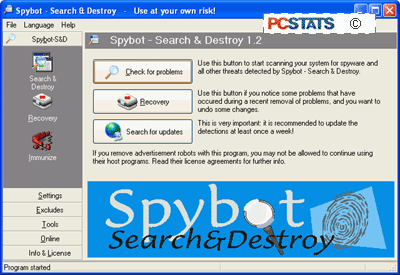
Ad-Aware and spybot S&D complement each other well, and it is recommended that you use them both for maximum peace of mind. Be sure to update them frequently through the built in update features. Either can be set to schedule updates and spyware checks for specific times, so you can schedule a daily sweeping of your system for unwanted spyware.
In addition to protecting yourself with spyware removal utilities, using a firewall that is capable of blocking information going out from your computer to the Internet is also a good idea.
For more detail on how firewall work see PCstats' Firewall technology article. Various freely available software firewalls such as Zone Lab's Zonealarm are capable of this.
Credit : http://www.pcstats.com/articleview.cfm?articleid=1458&page=7
Spyware removal utilities
For increased security, set all other Active-X referencing options on this page to 'prompt' or even 'disable.' I would recommend 'prompt' to give you the maximum choice as you are surfing, though you may find the constant Active-X prompts annoying. Disabling them is unlikely to significantly affect your web experience.
The most common vector for unwanted installation of spyware programs (besides clicking the 'ok' button without looking) is using low security or incorrect settings of these Active-X control buttons. If your internet security is set to the 'low' setting, or you have manually enabled 'download signed active-x controls,' spyware can be installed on your computer without any further prompt for permission.
By enabling signed active-x controls to run, you have given consent for any software using a valid security certificate purchased from Verisign or obtained from another location, to run on your system.
Always ensure that the signed active-x controls option is set to 'prompt'. Software like Gator is positively friendly next to some software that can end up installed due to this loophole. Another method of protecting your computer is to use the Windows update feature frequently, since Microsoft generally patches security holes quickly after they are exposed.
Spyware removal utilitiesIf you suspect that your computer has been infested with one or more varieties of spyware, the best thing to do first is to install and run one of the freely available spyware detection and removal tools. Since manual removal tends to be rather complicated and differs for each program, and there is no real centralized body of information for dealing with spyware as there is for Trojan horse and virus programs (www.sarc.com ), using the removal software is certainly the first option.
Lavasoft's Ad-Aware is the most well known of these spyware removal tools. Now up to version 6, it works essentially like a virus checker, scanning locations on your computer for the signature files, registry entries and cookies (tracking files) of well-known spyware programs and websites/vendors. It is available both in a free personal edition and as a commercial package for businesses.
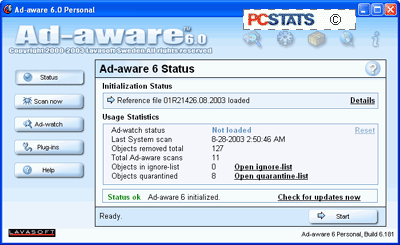
It is extremely easy to use, as it employs the familiar one-button scan, one button update mechanism seen in most popular anti-virus packages, and as such will feel familiar to most users. Ad-Aware will categorize files it finds during a scan, and recommend their removal. Ad-Aware is available here.
Credit : http://www.pcstats.com/articleview.cfm?articleid=1458&page=6
Setting Activex Controls
Assuming you are using windows XP and Internet Explorer, there are some browser settings that can be configured to ensure a safer surfing experience, primarily dealing with how activex controls are handled by your browser. Activex controls are essentially programs that can be run by Windows operating systems straight from a web page. These can include many things such as web forms, sound and graphics, but what we are primarily concerned about is installation programs.
Many vendors, such as Gator Corporation, use Activex controls to enable the installation of their software from participating websites. By default, all Windows operating systems will prompt users for permission to install such applications, but it is possible to set your browser to bypass user permission and automatically run Activex controls. To avoid this:
From Internet Explorer, click 'tools' then 'internet options' and select the 'security' tab.
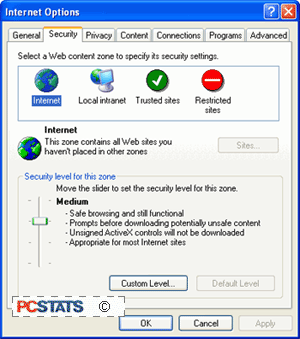
Select the 'custom level' button.
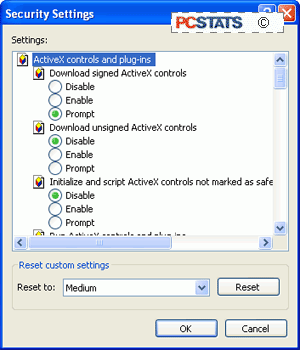
To begin with, ensure that 'download unsigned Active-X controls' and 'initialize and script Active-X controls not marked as safe' are disabled.
Credit : http://www.pcstats.com/articleview.cfm?articleid=1458&page=5
What can you do about spyware?
As you have probably realized by now, there are many different ways in which spyware can manifest itself on your computer. In many cases, it may not be at all obvious that your system and your privacy are being compromised. To safeguard yourself against unwanted software, first and foremost read the fine print. The majority of spyware applications attempt to install themselves either from security permission windows such as this one,
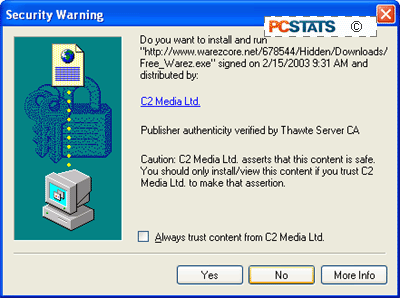
or as 'opt-out' components of the installation process of other software. 'Opt-out' meaning that the software will be installed by default, and you must specifically request during the install process that it not be added. Both can be easily avoided if you are diligent about reading screens and licenses before you click 'ok'.
Credit : http://www.pcstats.com/articleview.cfm?articleid=1458&page=4
Subscribe to:
Posts (Atom)